 Trinfinity Enterprises
Step-by-step guide
How to use the Tone Configurator
From picking your sound to holding a build sheet with pickup specs, parts and a wiring diagram, in 19 steps. Keep it handy as a PDF if you like.
Updated October 29, 2026
Part 1: Find your tone
The Tone Finder ranks pickups for each spot on your guitar for the sound you want, then suggests the electronics and setup to go with them.
Step 1
Open the Tone Configurator
Go to trinfinityenterprises.com/guitars/tone/ on your phone or computer.
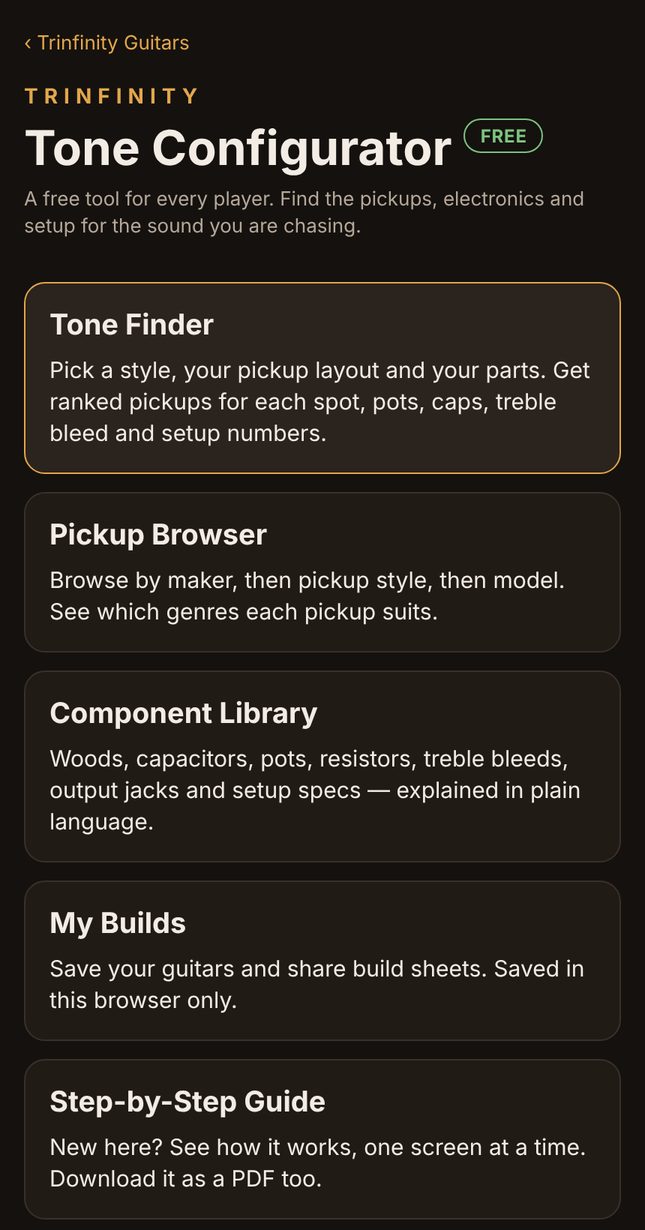
Tap Tone Finder. The other cards are there when you want them. Pickup Browser lets you look up pickups by maker, the Component Library explains pots, caps and the rest in plain language, My Builds holds builds you save, and Step-by-Step Guide brings you back here.
Step 2
Pick your music genre, then a style
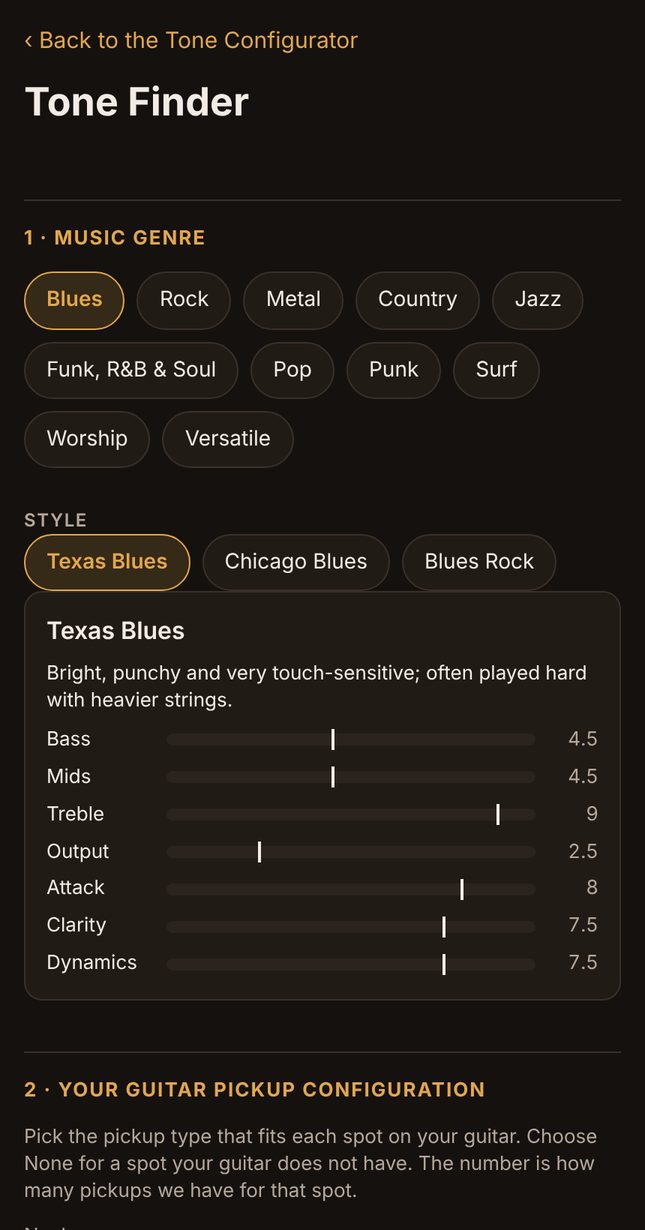
Tap the kind of music you play. A row of styles opens under it. Tap the one closest to your sound.
The bars show the sound that style is known for: bass, mids, treble, output, attack, clarity and dynamics. That is the target the Tone Finder aims for.
Step 3
Or pick Versatile for a different style in each spot
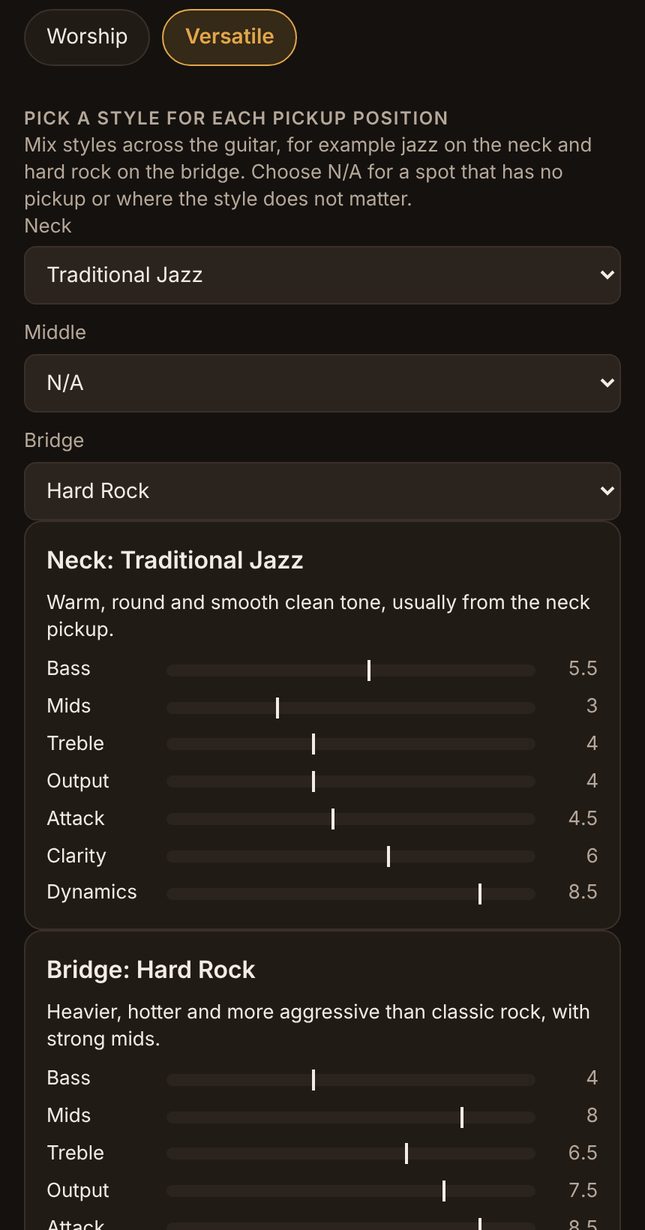
Play more than one style? Tap Versatile. You get a drop-down for the Neck, Middle and Bridge, each listing every style, so you can have jazz on the neck and hard rock on the bridge.
Choose N/A for a spot with no pickup, or where the style does not matter. Each spot is then ranked for its own style.
Step 4
Set your guitar pickup configuration
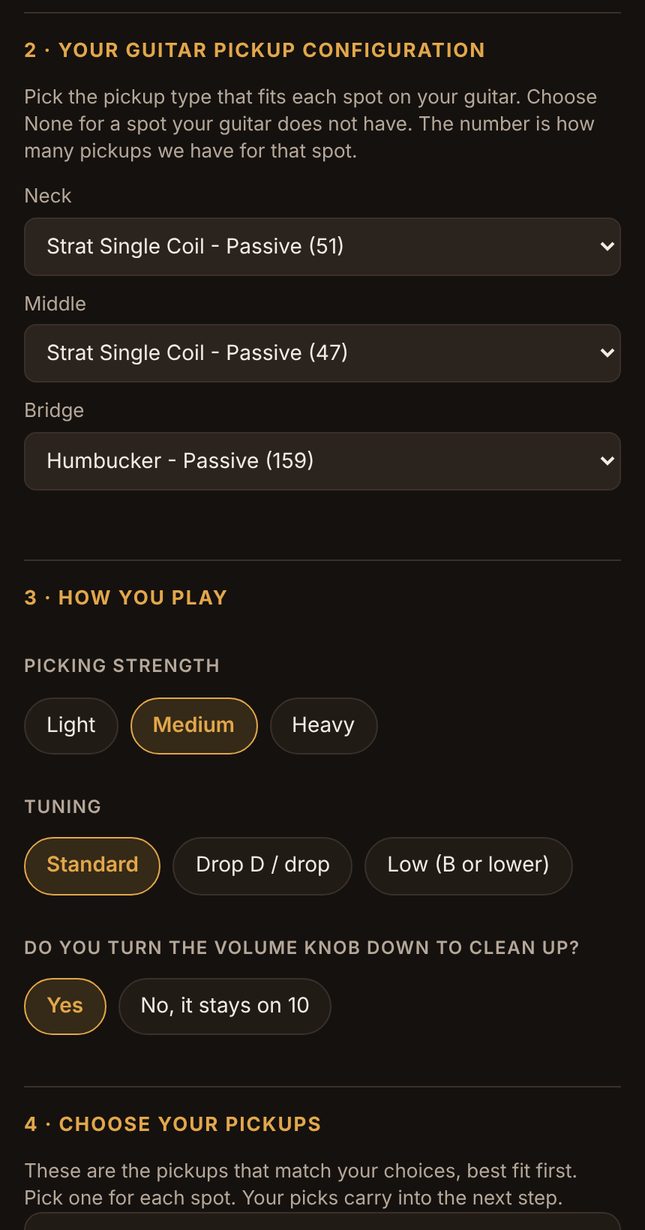
For the Neck, Middle and Bridge, pick the type of pickup your guitar takes, for example Strat Single Coil - Passive or Humbucker - Passive. Choose None for a spot your guitar does not have.
The number after each choice is how many pickups we have for that spot. Choices with none in our list yet are greyed out.
Step 5
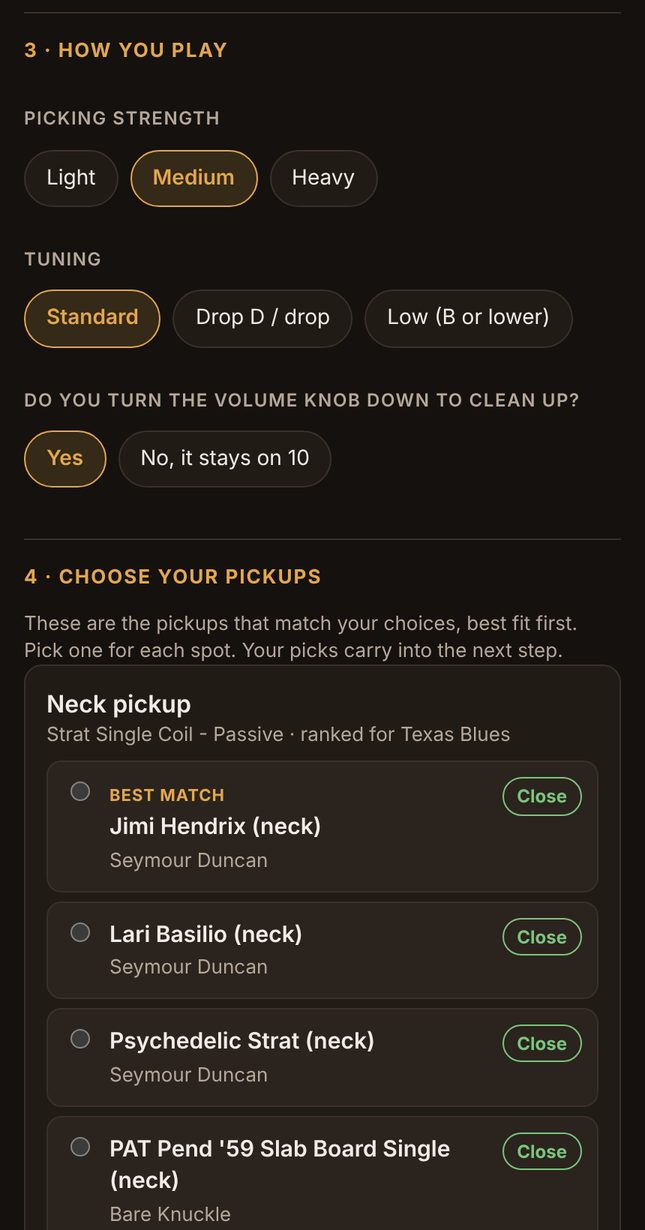
Tell it how you play
Pick how hard you pick, your tuning, and whether you roll the volume knob down to clean up. These set your string gauge, string height and treble bleed.
Step 6
Choose a pickup for each spot
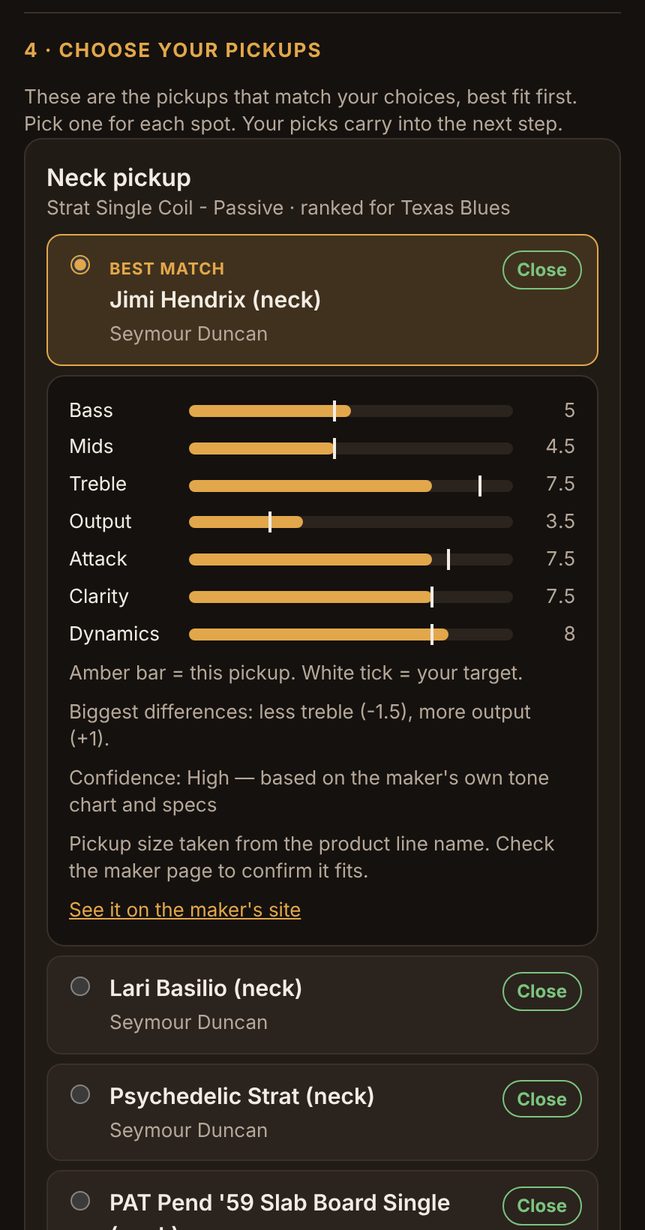
Each spot now lists the pickups that match your choices, best fit first. The badge shows how close each one is: Close, Good, Fair or Far.
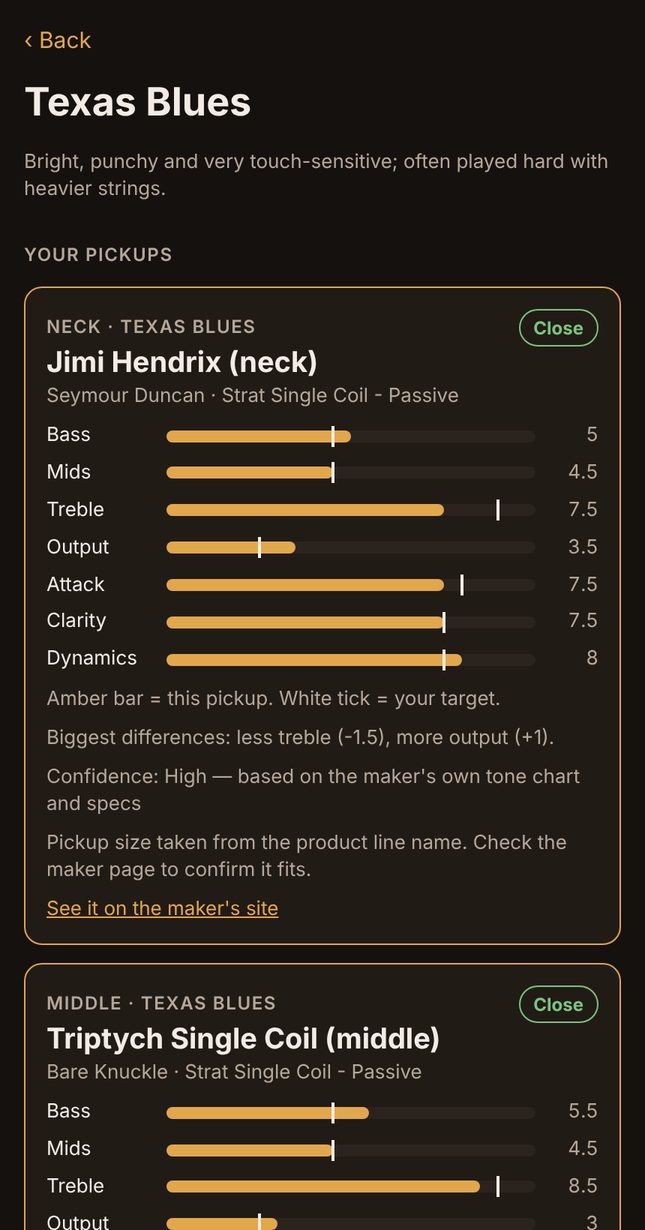
Tap a pickup to choose it. Its bars open underneath: the amber bars are the pickup and the white tick marks are your target. Tap Show all to see every match. Your picks carry into the next step.
Step 7
Pick your components
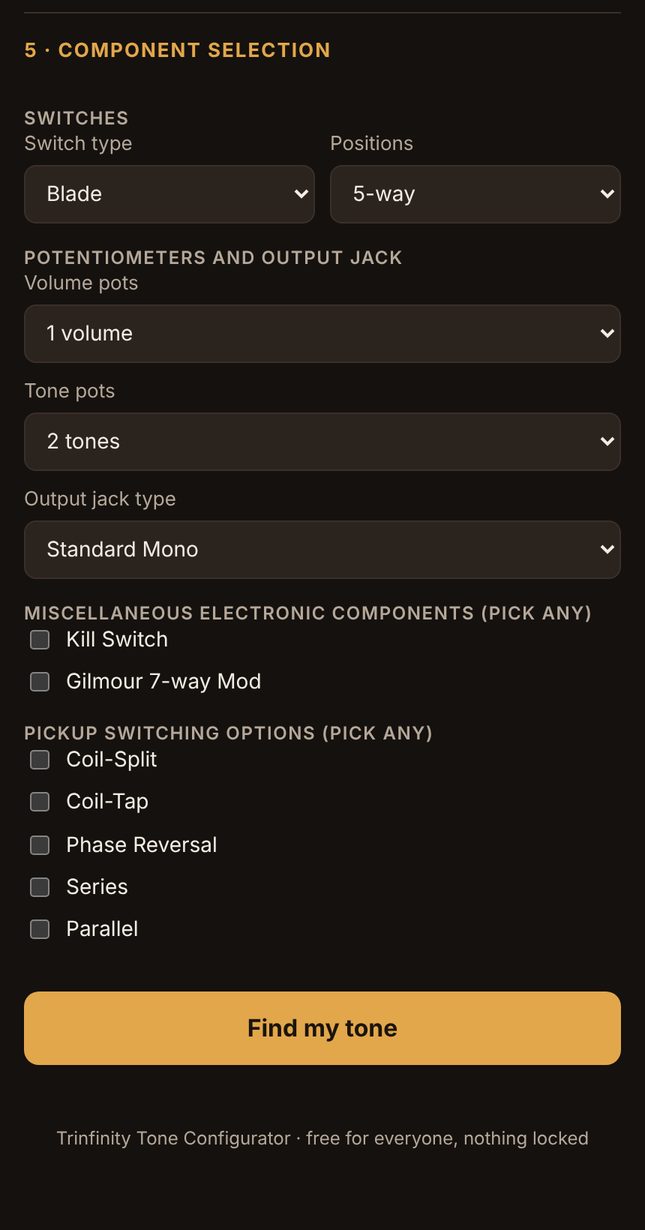
Choose your switch type (blade, toggle or rotary), then its positions, such as 5-way or 3-way.
Then pick how many volume pots and tone pots you want, and your output jack: standard or barrel, mono or stereo.
Step 8
Add extras and switching options
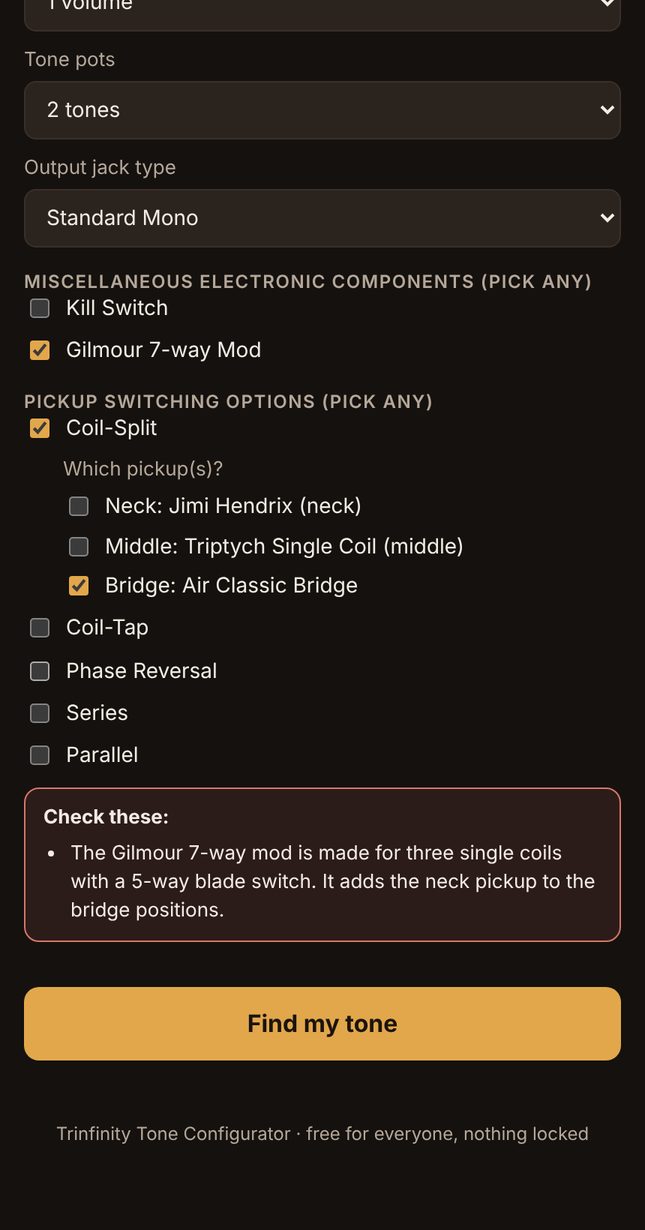
Tick any extras, such as a kill switch or the Gilmour 7-way mod, and any pickup switching options: coil split, coil tap, phase reversal, series or parallel. For each option, tick which pickup(s) it is for.
If a choice will not work with your pickups, a Check these box tells you why. Then tap Find my tone.
Step 9
Read your pickups
The top of the results shows the pickup you chose for each spot, with its match badge, its bars against your target, and the biggest differences.
Tap Save this build to keep it in this browser, or Share build sheet to copy a text version you can paste into a message or email.
Step 10
Check the electronics
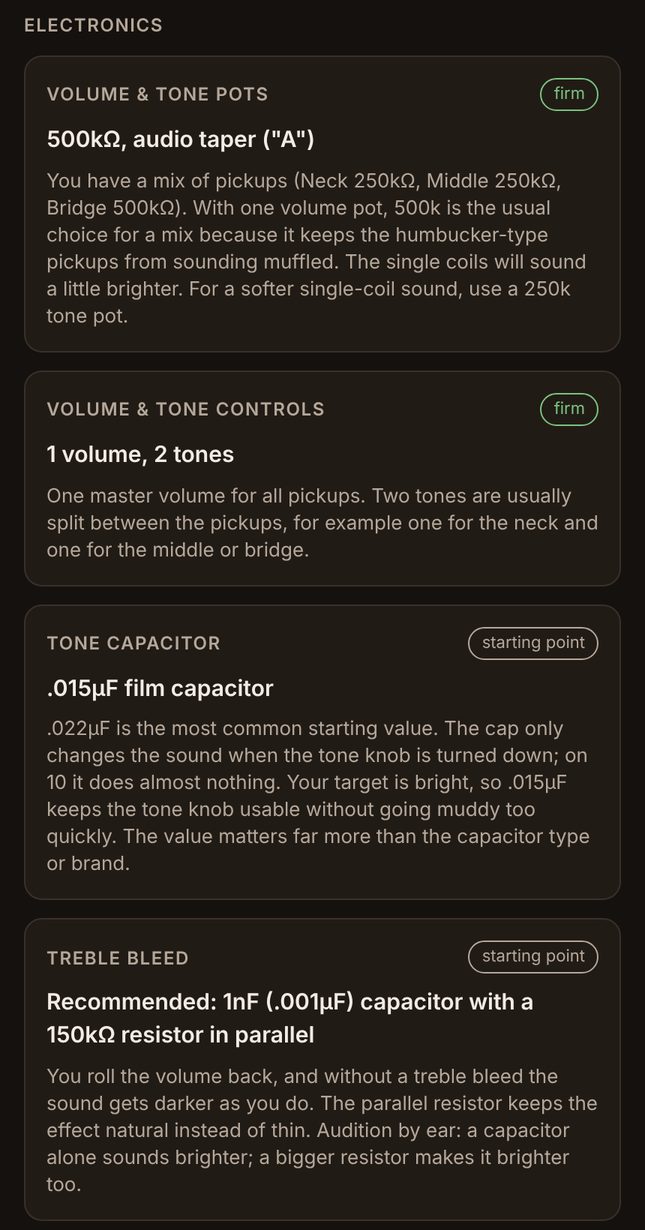
Under Electronics you get the pot value and taper for your mix of pickups, your volume and tone layout, tone cap, treble bleed, switch, output jack and any extras or switching options you picked, with the reason for each.
Firm means it is the standard. Starting point means try it and adjust by ear.
Step 11
Tap "Build sheet: parts, specs and wiring"
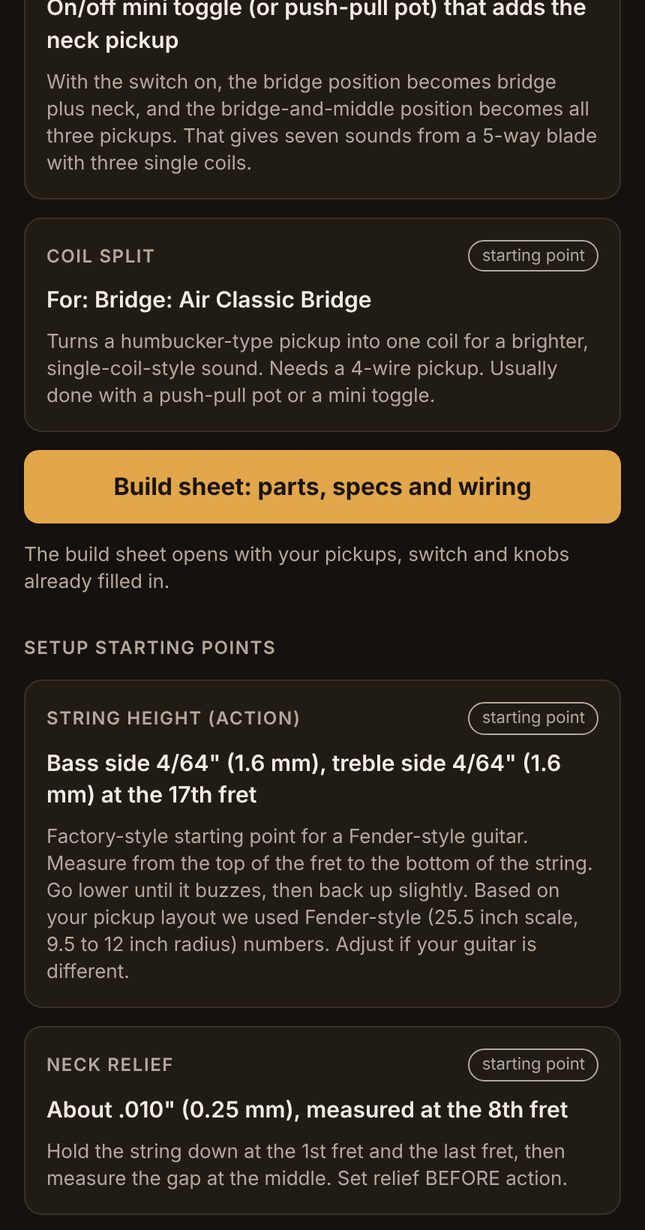
Under Electronics, tap the gold Build sheet: parts, specs and wiring button. It opens the build sheet with your pickups, switch and knobs already filled in.
Below the button are your setup starting points: string height, neck relief, pickup height for each spot, and string gauge. They are based on your pickup layout, so adjust them if your guitar is different.
Part 2: Make your build sheet
The build sheet puts the maker specs for every pickup, the parts to buy and a link to the pickup maker's wiring diagram on one sheet you can download.
Step 12
Check your pickups, switch and knobs
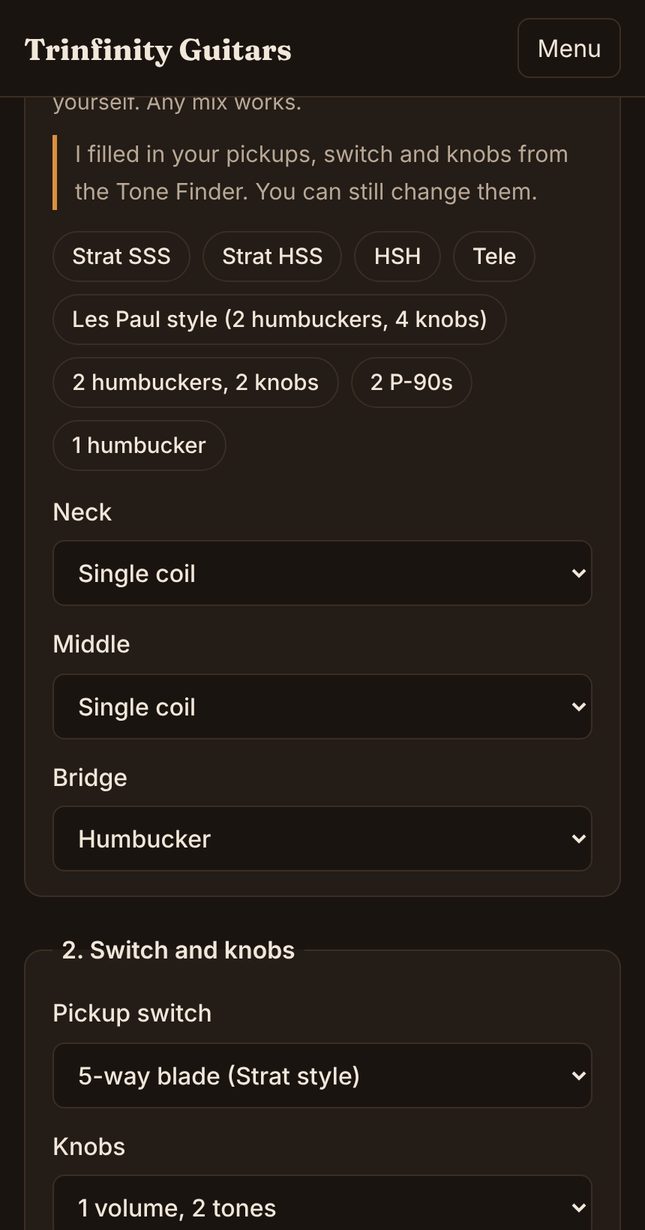
Everything you picked in the Tone Finder is already filled in: your pickup types, switch and knobs. Change anything you like.
Step 13
Pick your hand and answer the coil split question
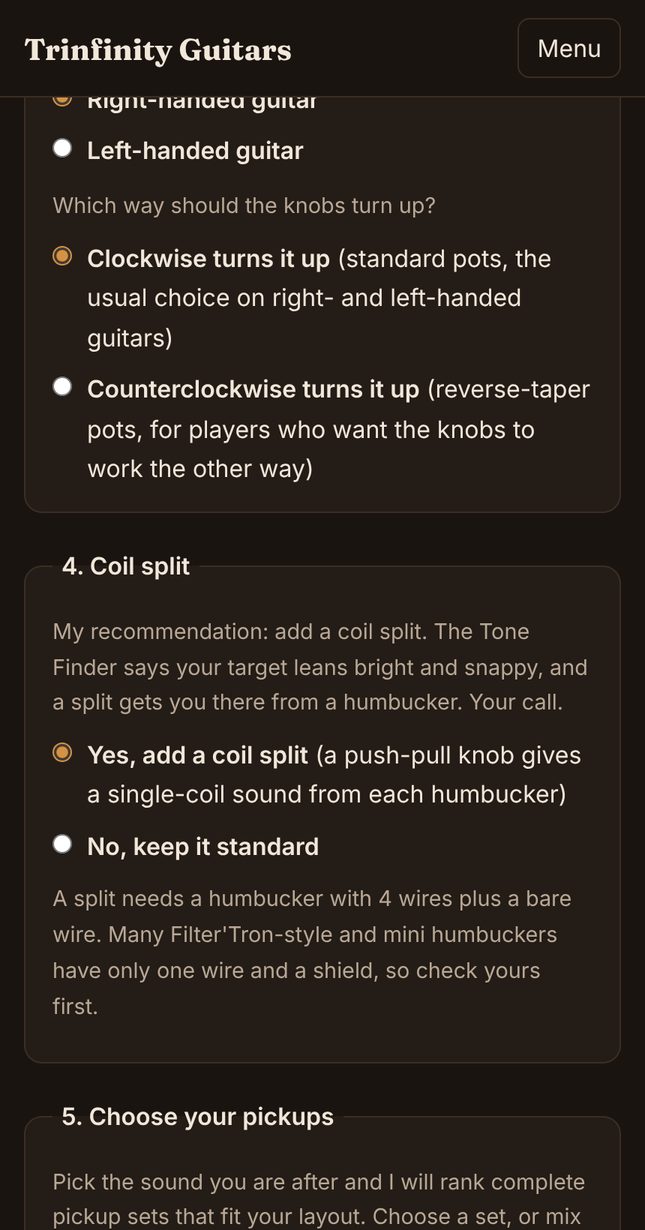
Pick right-handed or left-handed, then which way you want the knobs to turn up. Clockwise is standard and is what most players want, left-handed included.
If you have a humbucker, you will get my recommendation on a coil split. If you picked a coil split in the Tone Finder, Yes is already chosen.
Step 14
Keep your pickups or choose a set
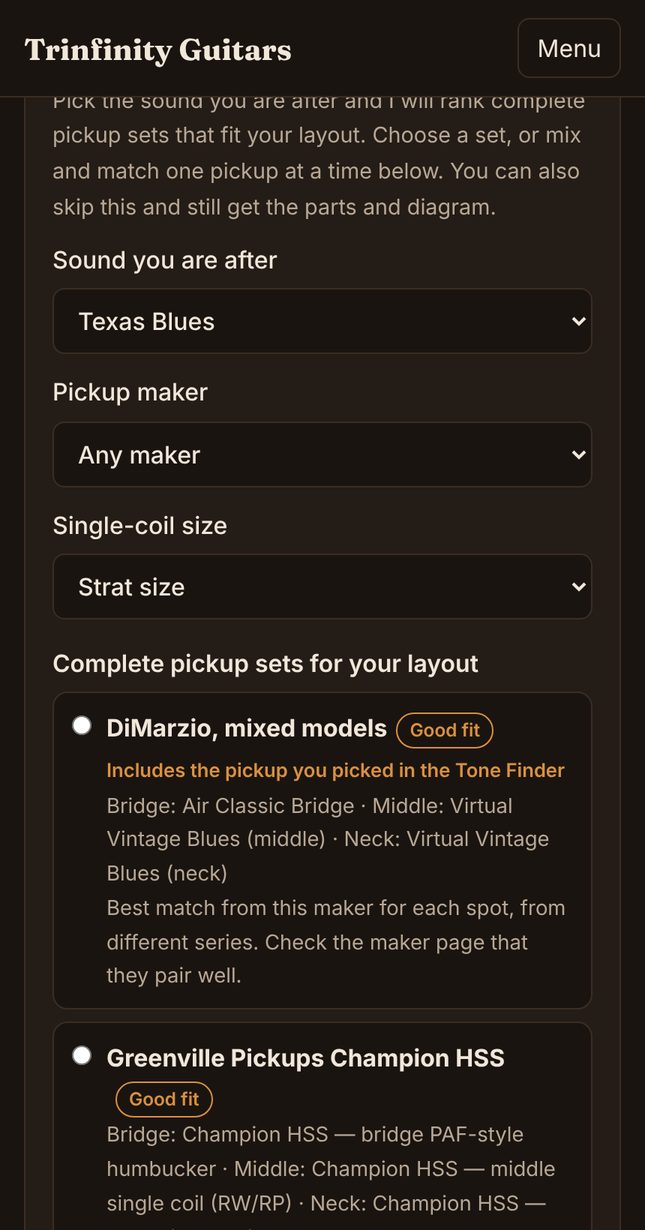
Your Tone Finder pickups are already in the mix and match lists, so you can go straight to Make my build sheet.
Want to compare? The list above them ranks complete pickup sets for your layout and sound. Tap a set to swap all your pickups at once.
Step 15
Read your pickup specs
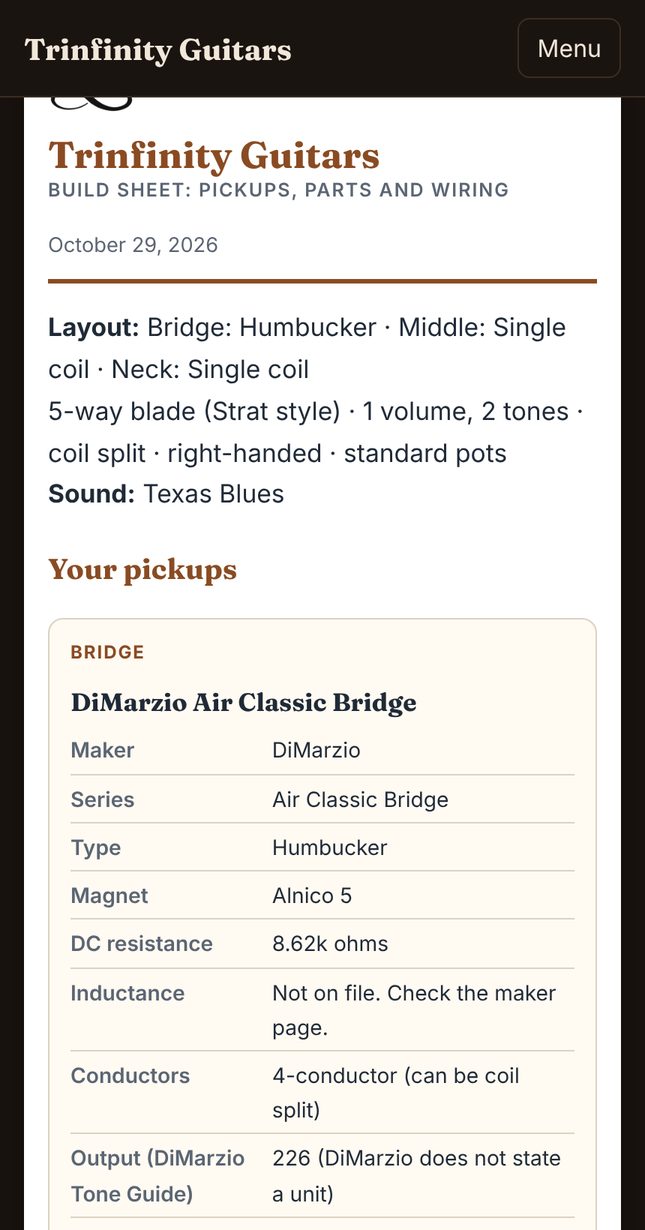
The build sheet opens with the Trinfinity Guitars header, the date and your layout. Each pickup gets its own card with the maker's specs: magnet, DC resistance, size, the maker's tone chart where there is one, and a link to the product page and source.
"Not on file" means our record does not have that spec, so check the product page.
Step 16
Read your parts list
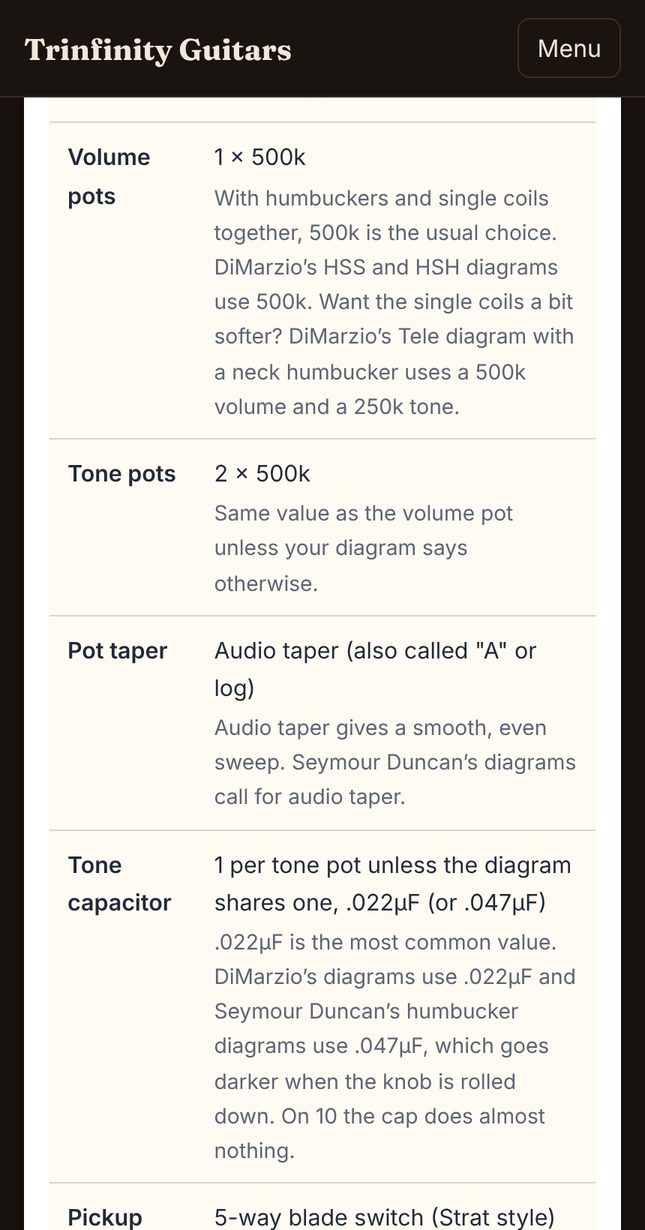
Below the pickups is every part to buy: volume and tone pots, pot taper, tone cap, switch, push-pull pot if you chose a split, output jack and wire.
Under each part is a short note on why, and which maker diagram uses that value.
Step 17
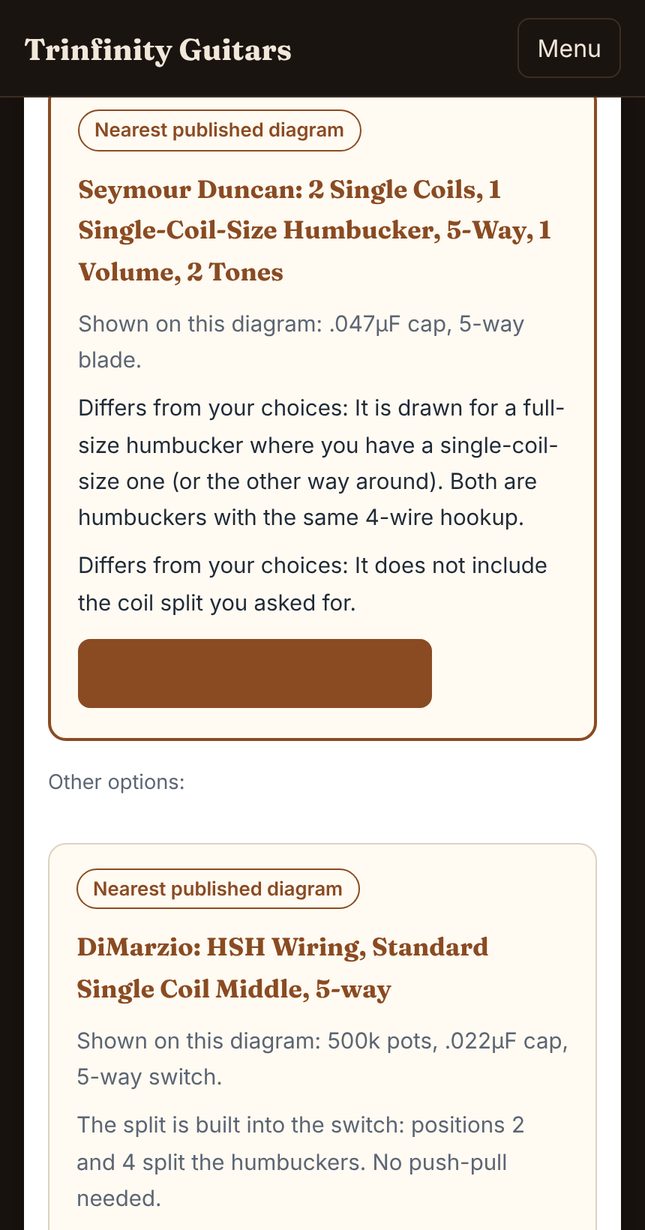
Download your wiring diagram
Exact match means the diagram matches every choice you made. Nearest published diagram lists what is different, right on the card.
Tap Download diagram (PDF) to save or print it, or the View on button to open it on the maker's own site. Unusual layout? Use the links under More diagrams for this pickup mix.
Step 18
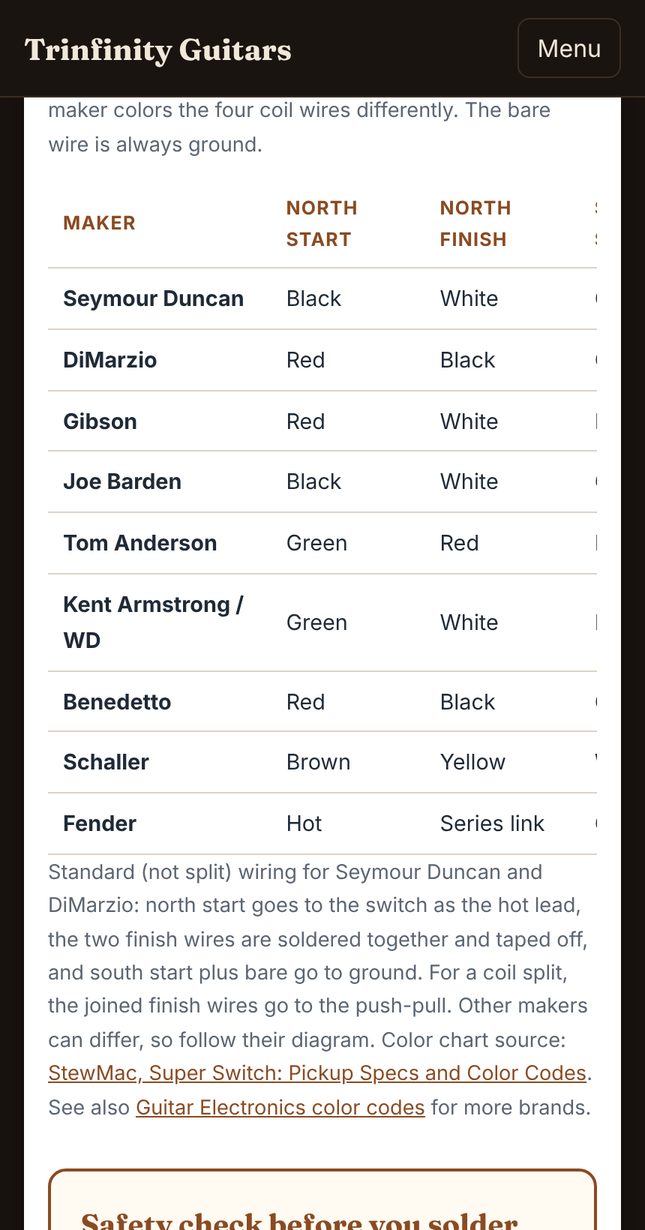
Match your wire colors
If you have humbuckers, a chart shows which wire color is which for each maker. Every maker uses its own colors, so check this before you solder.
Step 19
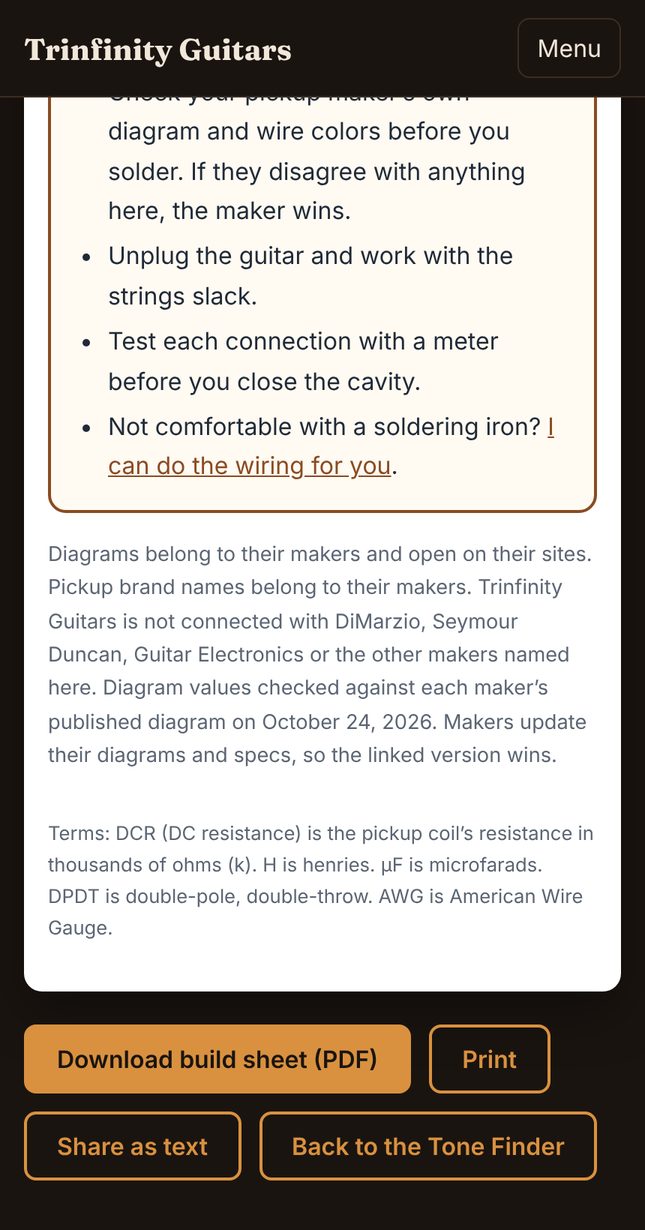
Run the safety check, then save your build sheet
Read the safety check before you heat up the iron. Your pickup maker's own diagram always wins if it disagrees with anything here.
Tap Download build sheet (PDF) to keep it, Print to take it to the bench, or Share as text to send it to someone. Not comfortable with a soldering iron? I can do the wiring for you. Use the quote form.
Terms used
| AWG | American Wire Gauge, the size of a wire. A smaller number is a thicker wire. |
| DCR | DC resistance, the resistance of a pickup coil in thousands of ohms (k). Pickup makers list it as a rough guide to output. |
| DPDT | Double-pole, double-throw. Two switches in one, used in push-pull pots. |
| H (henries) | The unit for inductance, another pickup spec some makers publish. |
| k (as in 500k) | Kilohm, a thousand ohms. The value of a pot. |
| N/A | Not applicable. Used in Versatile for a spot with no style. |
| Portable Document Format, a file that looks the same on any device and prints cleanly. | |
| µF (as in .022µF) | Microfarad, the value of a tone capacitor. |
| TS and TRS | Tip-sleeve (mono) and tip-ring-sleeve (stereo), the two kinds of 1/4-inch output jack. |